
How to Modify Default System Text in Manhattan SCALE
The Problem
Someone recently searched Google for "what do the different user defined fields mean in Manhattan SCALE?"
Think about that. They went to Google to figure out what a field label in their SCALE environment means.
That's not a user problem. That's a system that doesn't document itself. When "User Defined 3" still says "User Defined 3" but it's been storing Carrier Account Numbers since go-live, you've built a guessing game into your daily workflow.
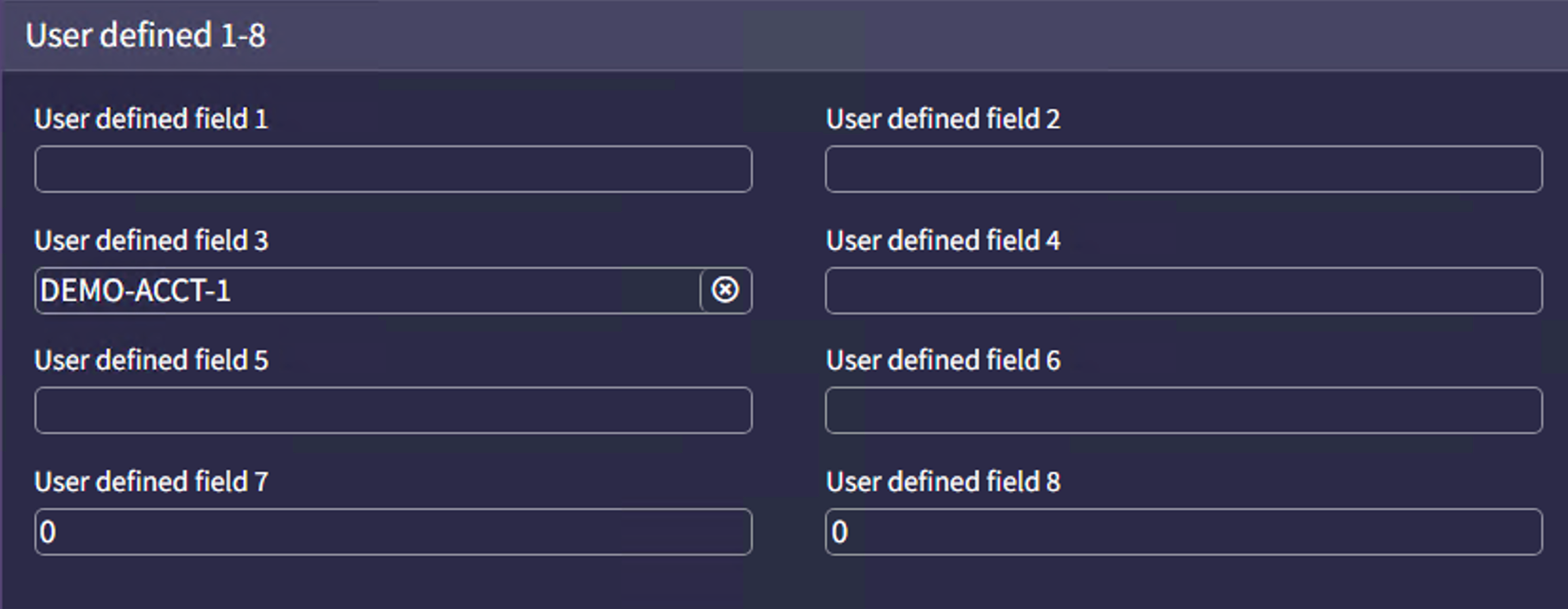
The fix is simpler than most people realize. SCALE's System Text feature lets you override any default label in the UI without code or customization.
What Is System Text?
System Text is SCALE's localization and label management layer. Every label, button, column header, and message you see in the UI is backed by a text key. SCALE ships with default values for all of them, but you can override any of those defaults.
This is the same mechanism that supports multiple languages. Even if you're running a single-language environment, the system text editor screen gives you full control over what labels say.
The key concept: you're not editing the default. You're creating an override that takes priority over the built-in text.
How to Override System Text
Step 1: Find the Text Key
Before you can change a label, you need to know its text key. Here's how to find it:
- Navigate to the SCALE screen showing the text you would like to override.
- In the upper-right hand menu, click the help icon , then select
Toggle resource keys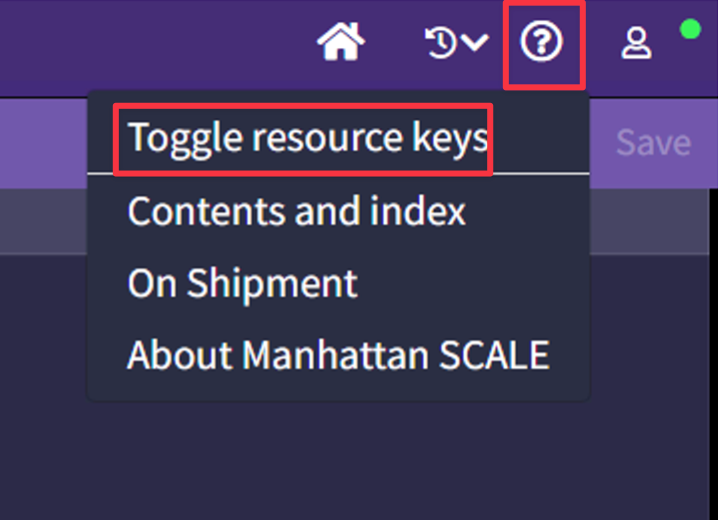
- Instead of displaying the human-readable text, SCALE will now display the resource keys that control each label on screen. Copy the key for the field you want to override.
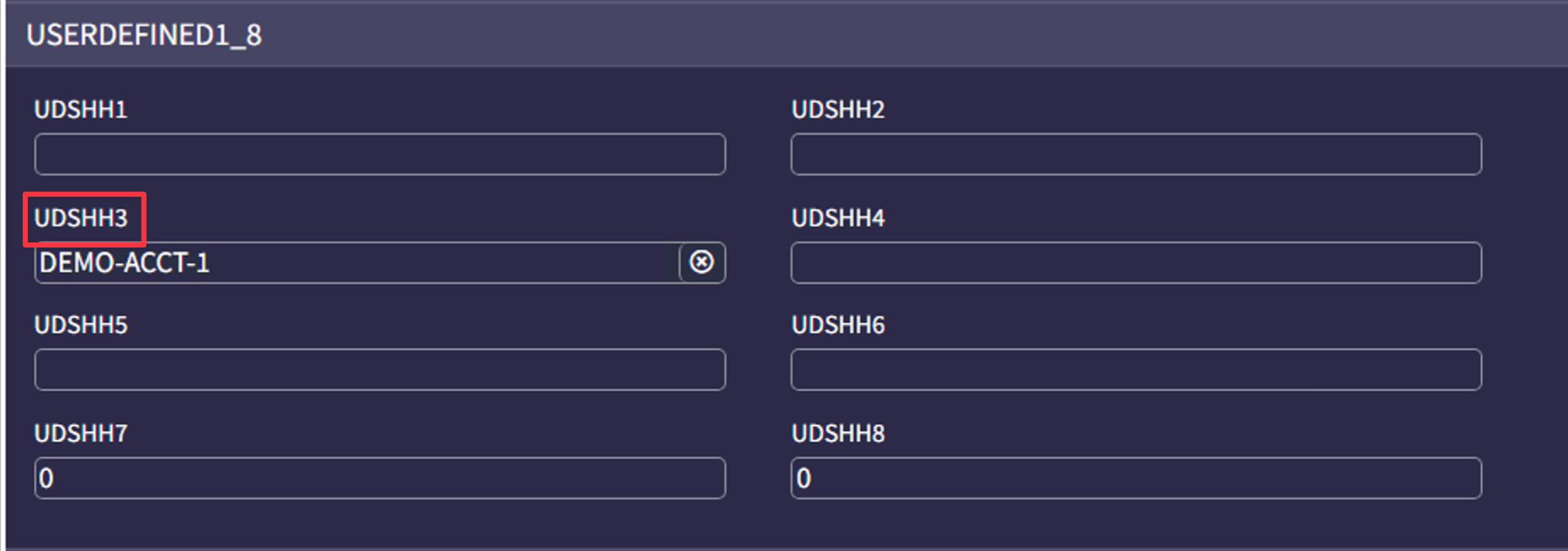
Step 2: Create the Override
Once you have the text key:
- Navigate to the system text editor through the desktop application: System Administration > System Text Editor.
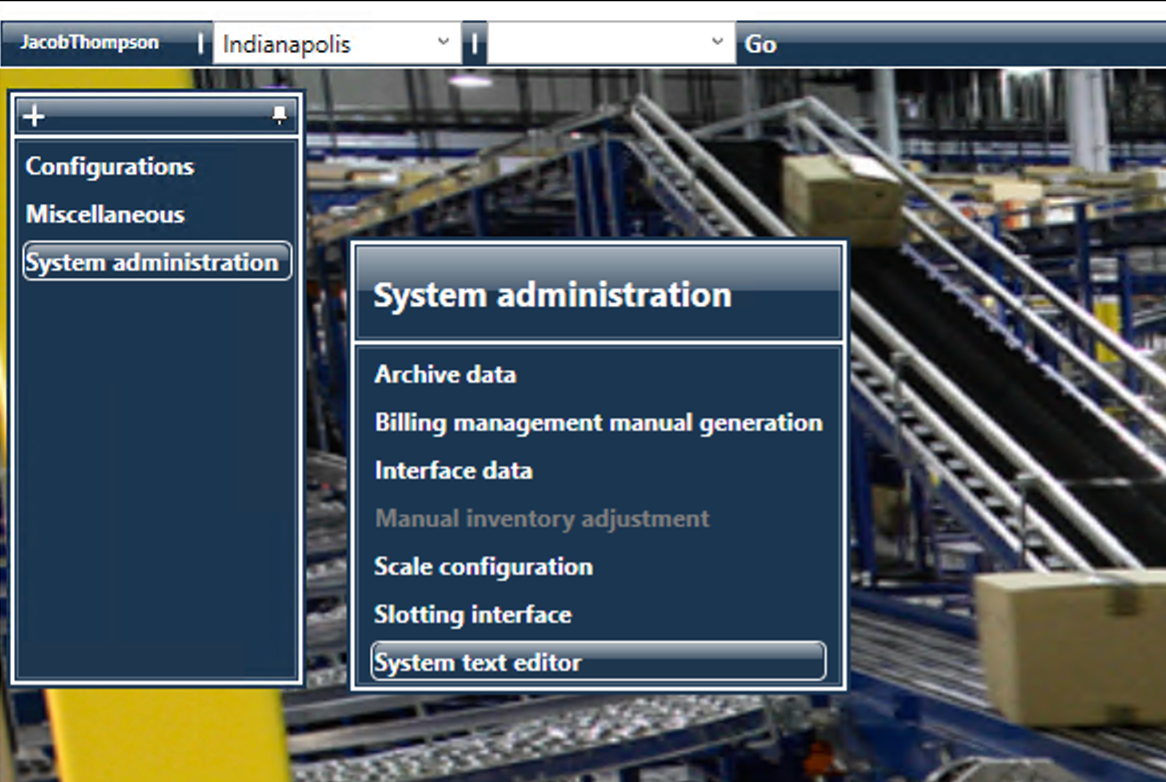
- Paste the resource key from Step 1 into the
Resource keyfield, then clickSearch. The matching record will appear with the default text value and an override field.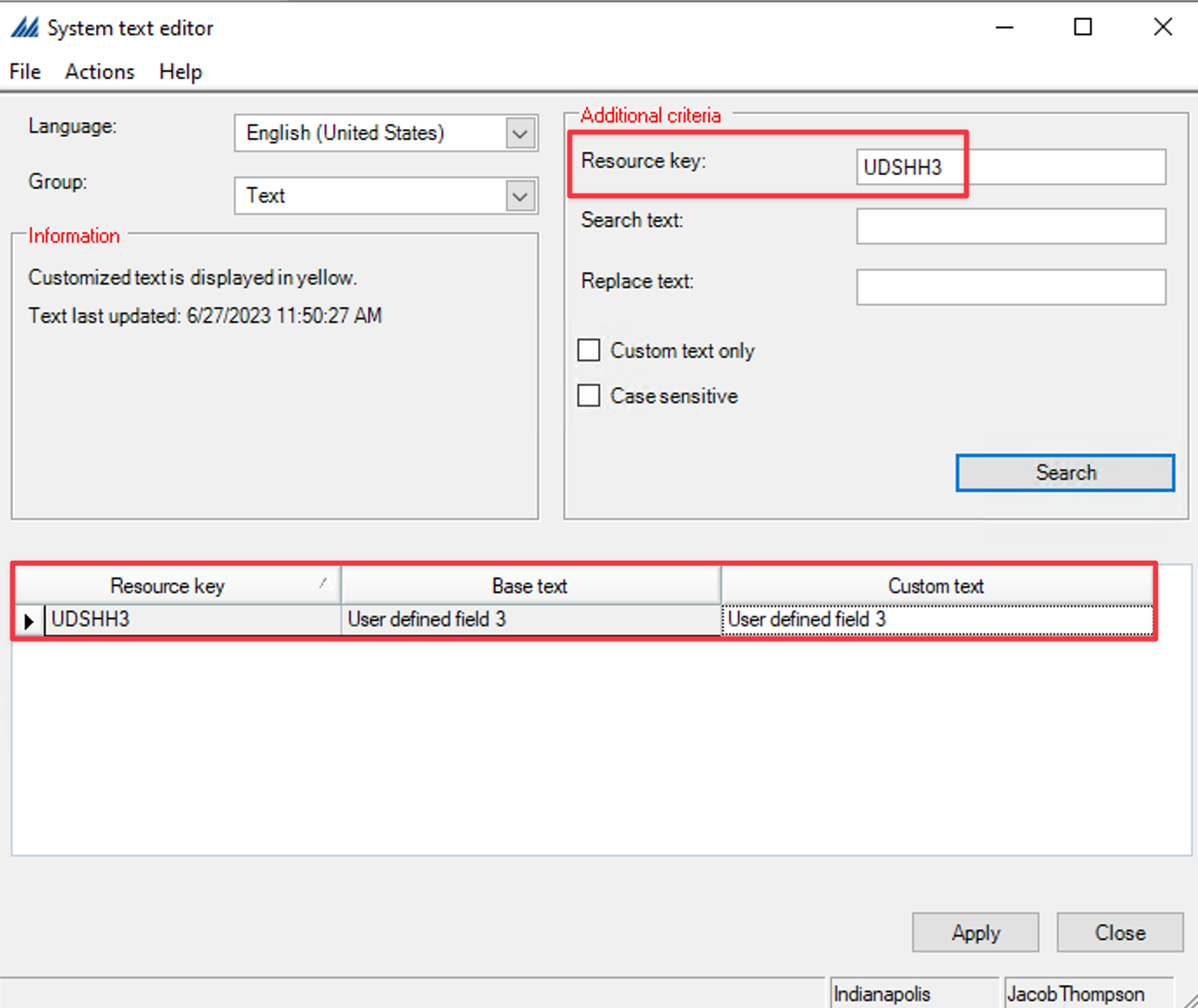
- Enter your new label in the override field — for example, change "User Defined 3" to "Carrier Account Number."
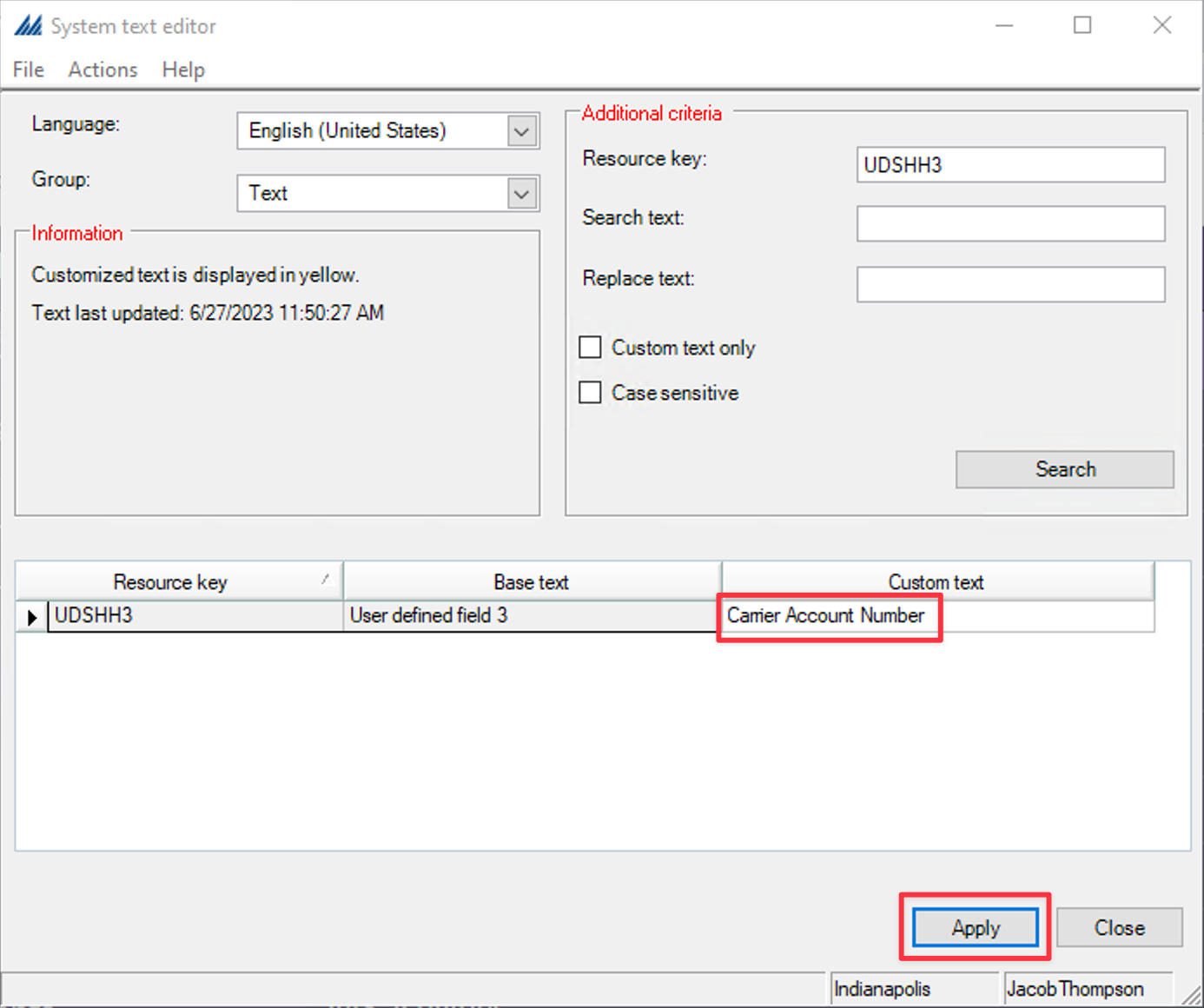
- Click
Applyto save the record.
Step 3: Verify the Change
After saving:
- Toggle resource keys off so SCALE displays text instead of keys.
- Refresh the page.
- Confirm the new label is displaying correctly.
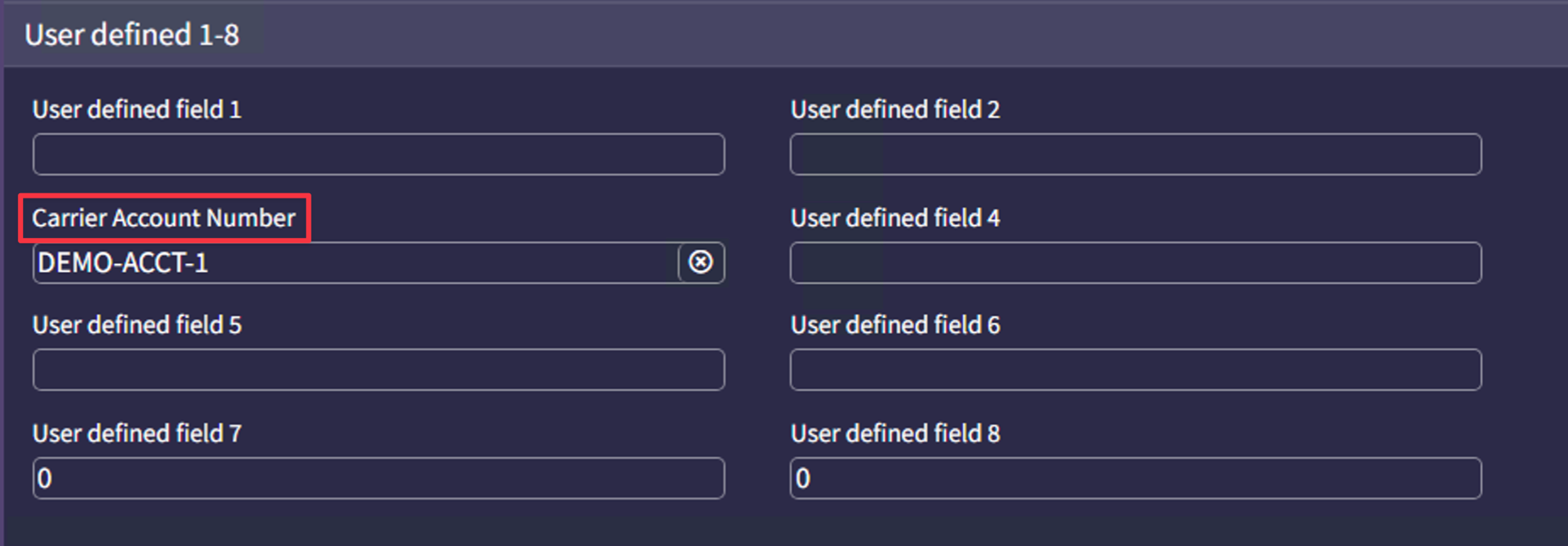
If SCALE isn't displaying the updated value yet, it's likely a cache issue. SCALE caches system text values so it isn't constantly pulling them from the database. In my experience, recent versions of SCALE refresh this cache automatically within about 10 minutes — no IIS reset required. Older versions may still need one.
Try waiting it out. If the change still doesn't take, clear the cache.
Tips and Gotchas
Start with the high-traffic screens. Don't try to rename everything at once. Focus on the screens your team uses most or might be causing the most confusion.
Document what you change. Keep a simple log of which text keys you've overridden and what they now say. This makes upgrades easier — you'll want to verify your overrides survived after upgrading to a new SCALE version.
Overrides survive upgrades (usually). System Text overrides are stored separately from the default values, so they should persist through version upgrades. That said, always verify after an upgrade. If Manhattan changes the underlying text key structure in a major version, your overrides may need to be re-applied.
User Defined fields aren't the only candidates. Customer categories, item categories, changing "ERP Order" to reflect the name of your actual ERP — anything backed by a text key can be overridden. If any label confuses your team or doesn't match your domain language, override it to be more clear to your users.
The Bigger Picture
This isn't just about labels. It's about whether your SCALE environment documents itself or requires knowledge that only lives in someone's head to operate.
Every generic label is a small friction point. One is fine. Dozens of them across your key screens means new team members are slower to onboard, support tickets take longer to resolve, and everyone spends mental energy translating internal jargon that the system could just say clearly.
Five minutes per field. Start with the worst offenders and work from there.
Need help cleaning up your SCALE environment?
From label cleanup to full customization audits, I help teams make SCALE work the way their operations actually run.
Schedule a Consultation